Filtering Fields and Elements |
  
|
Filtering Fields and Elements |
|
The Element Manager includes controls for filtering the amount of information presented to the current user in the summary table. Fields (columns) in the table can be easily added or removed using the “Filter Fields” button.
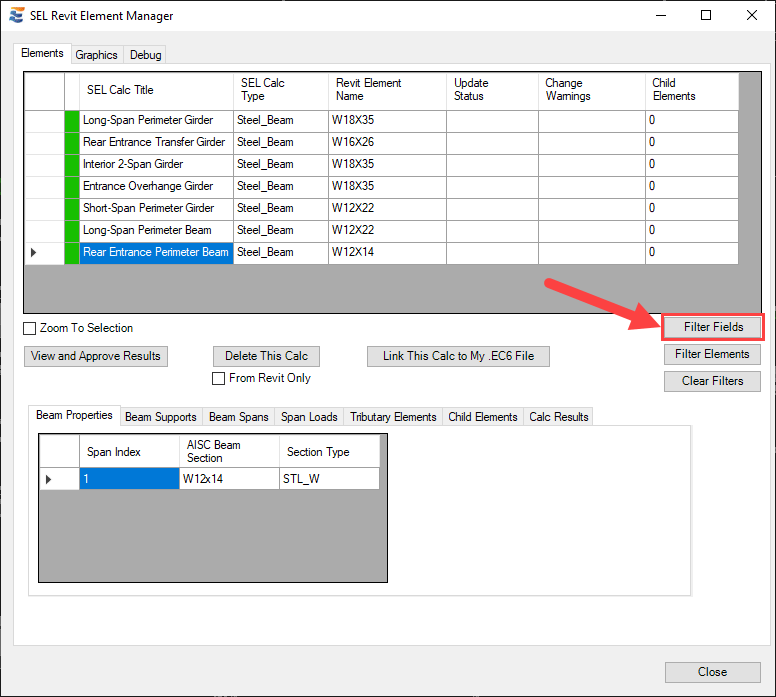
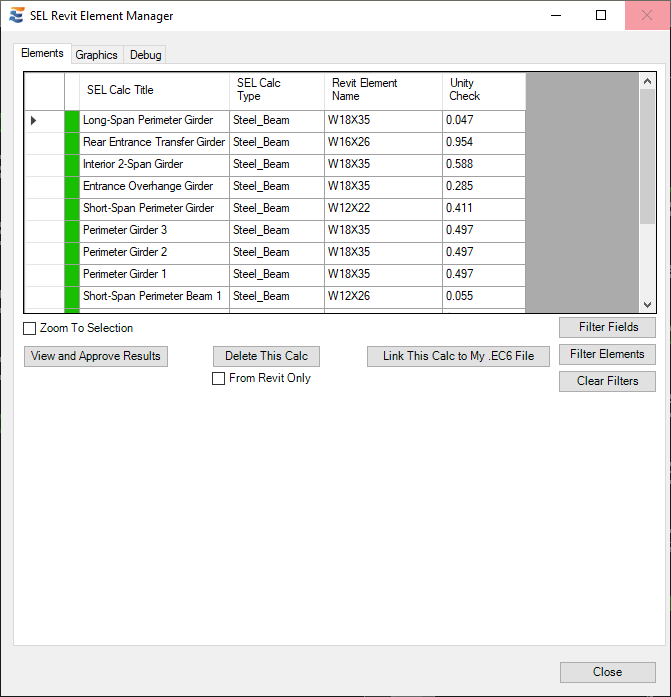
Adding or removing display fields using the checkboxes in the “Filter Fields” form causes the Element Manager window to dynamically resize to fit the contents of the summary table.

Upon closing the Element Manager, it will revert to default column display settings on the next open unless the user has specified to “Save filters for future use”. Saving of filter settings is specific to individual users and will not affect the appearance of the Element Manager for other team members.
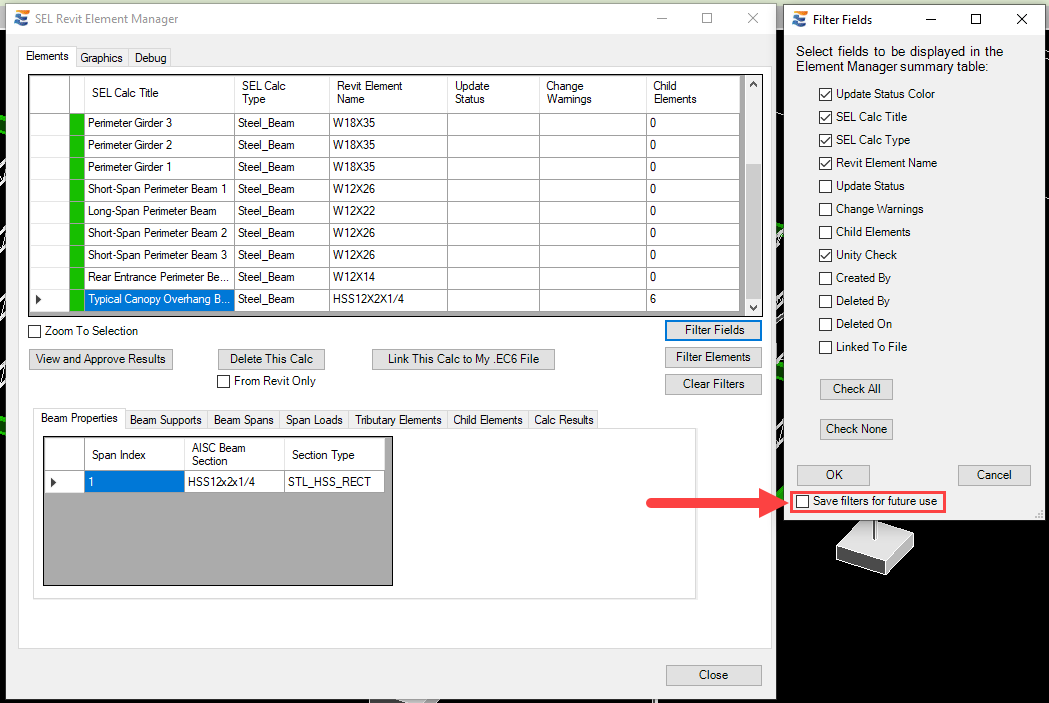
If field filters are saved, the Element Manager will retain this formatting on future opens of the Element Manager both in the current Revit session and in future sessions. Note that these field filter settings are tied to the current user only and to the specific Revit model that is active at the time they are applied. Future changes to the settings will overwrite the existing settings if the “Save” checkbox is activated.
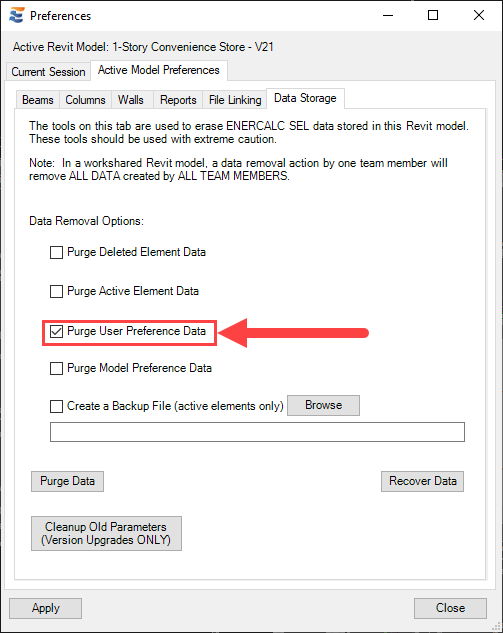
These settings will be removed and the Element Manager will revert to default field display if the “Purge User Preference Data” checkbox is activated during a data purge operation in the Revit model.
In addition to filtering the visibility of fields (columns) in the summary table, users may also select from a variety of criteria to show or hide individual element entries in the table. These options are accessed using the “Filter Elements” button on the Element Manager window.
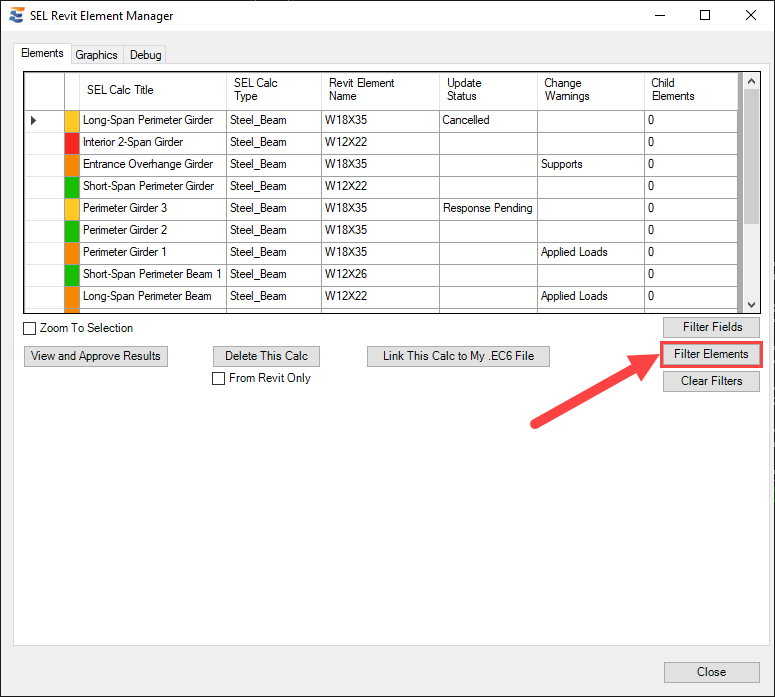
The Filter Elements window contains several tabs for different criteria by which elements may be either shown or hidden. Each tab contains a pair of list boxes with controls to “Add” or “Remove” elements with the corresponding properties from display in the main summary table.
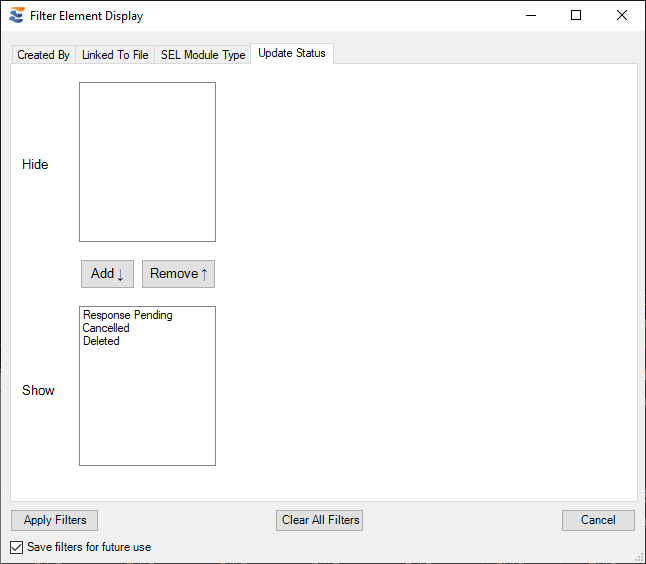
Any elements having properties moved to the “Hide” list will then be hidden from view in the main summary table.
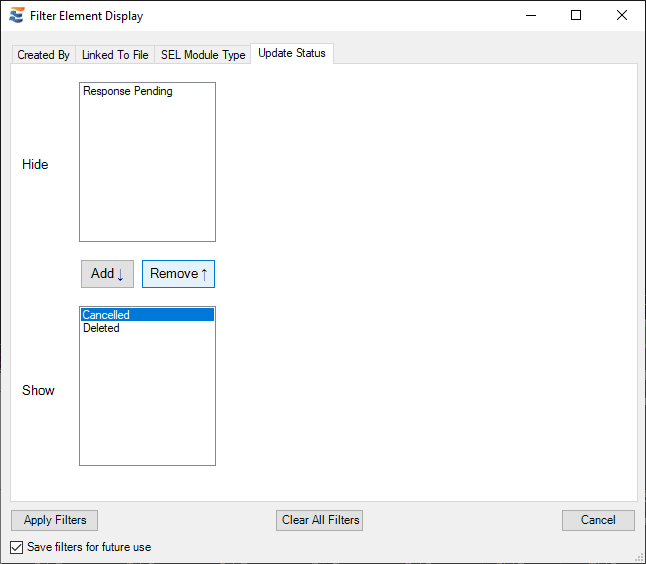
As with the field filters, these settings may be retained in future sessions using the “Save Filters” checkbox.
 <
<