Linking Reactions from Columns |
  
|
Linking Reactions from Columns |
|
Last revised: Thursday, January 29, 2026 at 02:34 PM
When linking reactions from column calculations, there are four main components to this portion of the window:
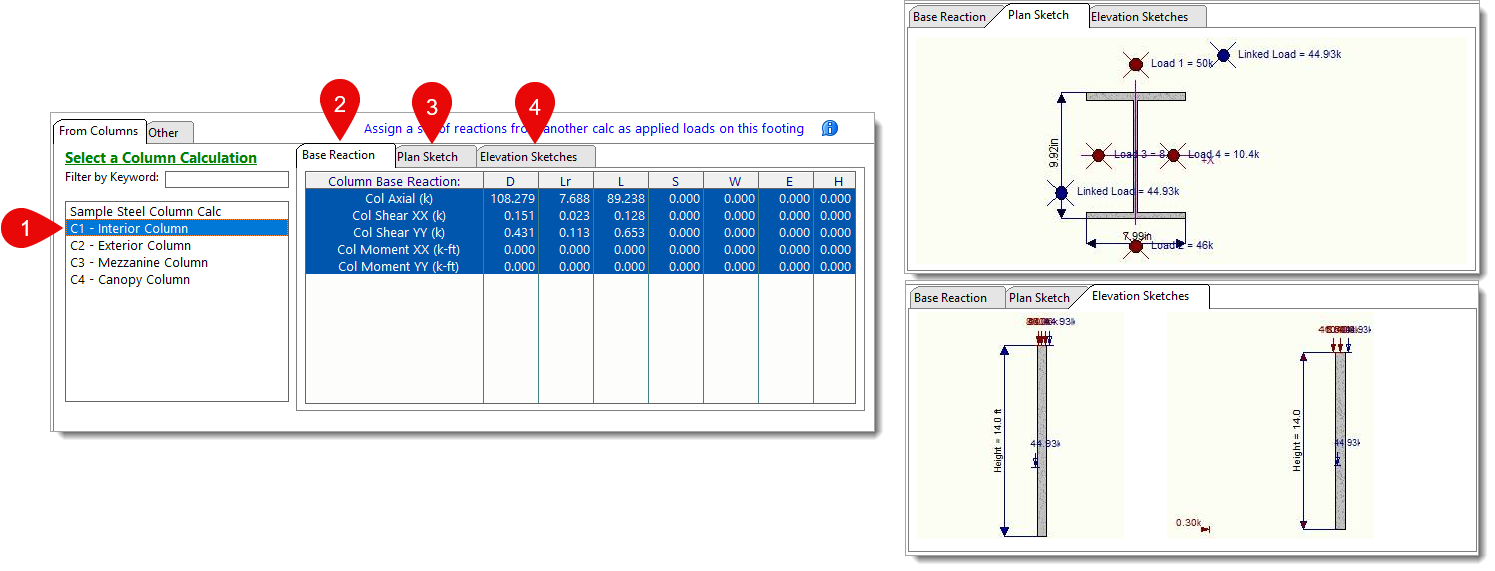
1) Column Calculation Table: Displays a list of column calculations within the active project file.
TIP: For projects with many calculations, use the Filter by Keyword text box to narrow down the list. Only calculations with names that contain your keyword will be shown. To make filtering even more effective, consider giving your calculations unique names or prepending them with a key identifier (such as "B1", "B2", etc.). This can help you quickly recognize and differentiate calculations at a glance.
2) Base Reaction Table: Displays all base reactions (axial, shear, and moment) by load case for the selected column. Reactions for D, Lr, L, S, and H are shown at the service level, while W and E are presented at the strength level. It is important to note that these reactions are already formatted for direct incorporation into further calculations, ensuring there is no double-factoring of the referenced reaction forces.
NOTE:
•The sign conventions displayed in this table are relative to the column's local coordinate system. For example, a column with (+) loading in the X direction will tend to have a (-) shear base reaction, and a column with (-) loading in the X direction will tend to have a (+) shear base reaction. Similar is true for the Y direction.
•Column base reactions are always linked in full for General Footings. This means that when you link a column reaction to a footing, all components (axial, shear, and moment) are included. When you select the base reaction, all associated components are selected together.
3) Reference Plan Sketch: A visual reference of the plan view for the currently selected column.
4) Reference Elevation Sketches: A visual reference of the elevation views for the currently selected column.
Once you've selected the reaction you'd like to link to the current calculation, move on to Edit Link Settings.
 <
<