Web Update |
  
|
Web Update |
|
Last revised: Thursday, June 4, 2026 at 05:58 PM
At ENERCALC we are continually improving and enhancing our software. To deliver the latest builds to all users, we use a built-in Web Update system that makes it easy to stay current with the latest fixes and improvements.
How to Check for Updates
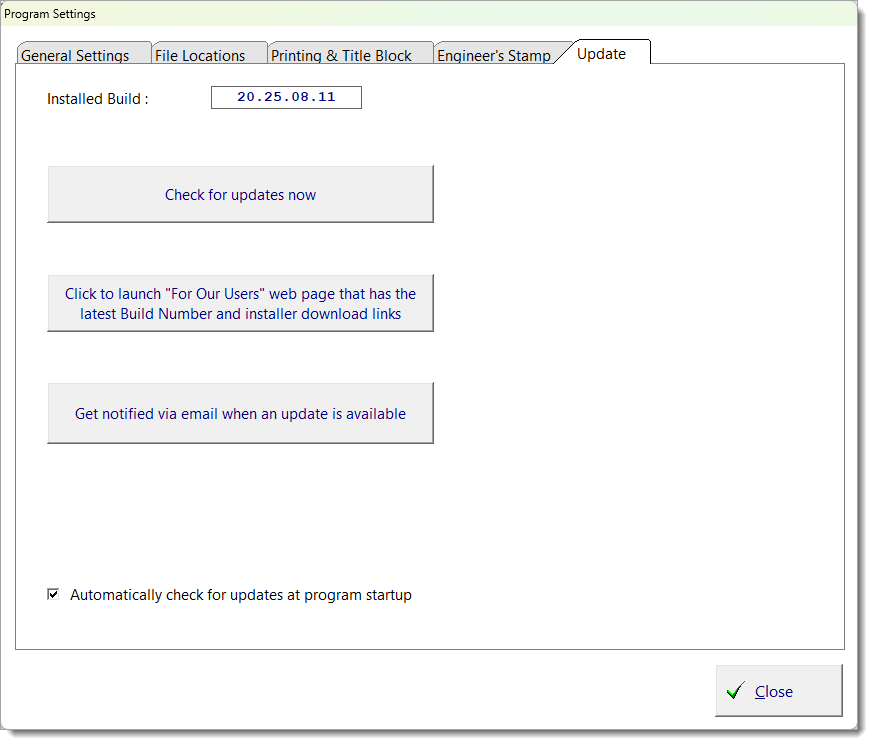
Select Settings > Updates from the main menu to display the update screen shown below. There are two ways that you can check for updates:
Automatic Updates:
Enable "Automatically check for updates at program startup" to have the software check for updates each time it starts. If an update is available, you will be prompted to install it.
Manual Updates:
To check manually:
1.Click Check for updates now.
2.Follow the on-screen prompts to install the latest version.
TIP: Each ENERCALC build number is based on the date the build was released. For example: 20.25.07.31 → Released on July 31, 2025 (YY.YY.MM.DD). Since ENERCALC releases updates once or twice a month, a build number showing a date more than 1–2 months old usually means you’re running an outdated version. In these cases, it's a good idea to run the installer/updater to install the latest fixes and improvements.
Want to be notified by email? Subscribe to our update announcement emails to receive alerts whenever a new build is released. Visit our subscription page and sign up with your preferred email address.
What Happens During an Update
How It Works
•The program ECSEL20_SETUP.EXE securely connects to ENERCALC servers (HTTPS, port 443).
•Your installed build number is compared to the latest build.
•If an update is available, you will be notified. Upon approval, it downloads ECSEL20_SETUP.EXE, which installs the new build.
Both files are digitally signed applications and safe to run.
NOTE: ECSEL20_SETUP.EXE will need write access to the installation folder for updates to work.
Data Shared During Update
The update process may send information to ENERCALC about your installation and use of the software licensed from ENERCALC, including:
•Your User Registration Number
•Installed Build Number
•Internet IP address of the updating computer
•Time usage data for various portions of the software
•Potentially other information only related specifically to the use of the software license
Absolutely no files, configurations, settings, or other information not specifically regarding the usage of the ENERCALC license will be sent. If you are concerned about this, please contact us for information on what is being sent. We have an open policy on providing you with information showing what might be included.
Advanced Options (for IT and Administrators)
If you manage multiple installations, you can control automatic update checks using this registry key: REG_CURRENT_USER\Software\ENERCALC\V20\DoCheckForUpdates
•1 = Yes (check automatically)
•-1 = No (disable automatic check)
 <
<