Settings |
  
|
Settings |
|
Last revised: Tuesday, March 31, 2026 at 05:24 PM
The Settings item in the main menu provides access to several selections that control how various aspects of ENERCALC SEL operates.
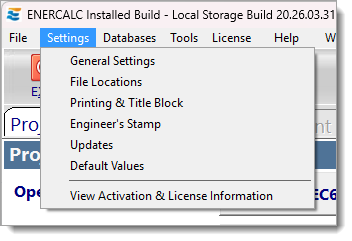
A selection of one of the first five items will open the Program Settings window and preselect the appropriate tab for the chosen item.
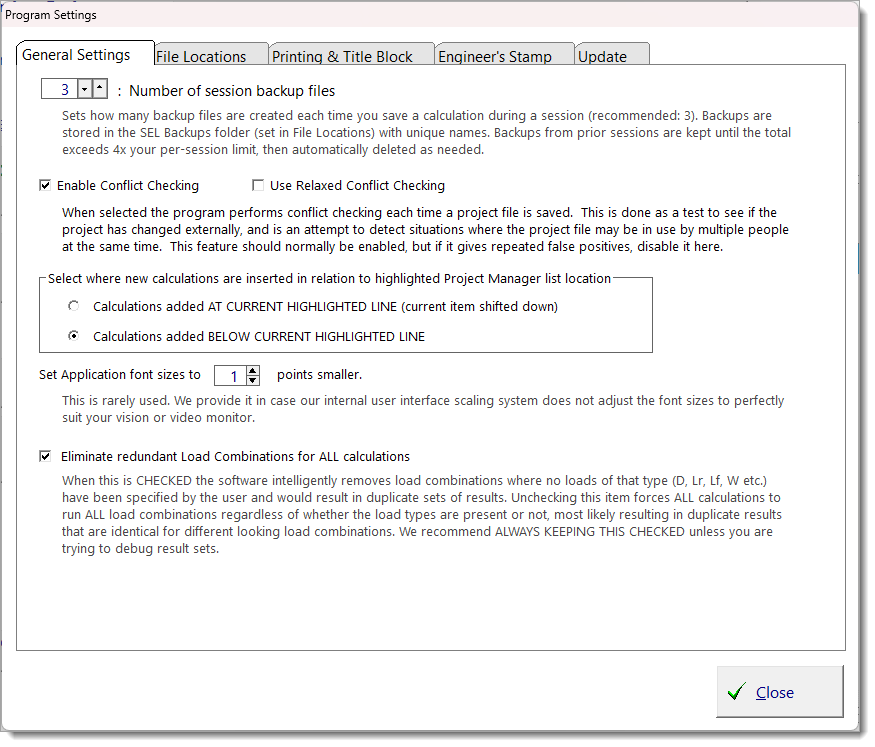
Number of session backup files: Sets how many backup files are created each time you save a calculation during a session (recommended: 3). Backups are stored in the SEL Backups folder (set in File Locations) with unique names. Backups from prior sessions are kept until the total exceeds 4x your per-session limit, then automatically deleted as needed.
For a detailed walk through on the retention policy of these backup files, see Understanding Project File Backup Limits: A Practical Walkthrough.
Enable Conflict Checking: When selected, the program performs conflict checking each time a project file is saved. This is done as a test to see if the project has changed externally, and is an attempt to detect situations where the project file may be in use by multiple people at the same time. This feature should normally be enabled, but if it gives repeated false positives, you can disable it.
Use Relaxed Conflict Checking: Some syncing systems can change the time of a file without actually changing anything else. The time discrepancy can trigger a false alarm file conflict. This relaxed setting will add more leeway to the comparison.
Select where new calculations are inserted...: This applies to the way calculations are inserted when using the Project Manager.
•When the first option is selected and you use the [+Add] button, it adds a new calculation to the project, and the calculation is inserted at the currently highlighted location (currently highlighted item is shifted down).
•When the second option is selected and you use the [+Add] button, it adds a new calculation immediately below the currently highlighted location.
Set Application font sizes to X points smaller: Provides a way to scale fonts down, for high resolution displays.
Eliminate redundant Load Combinations for ALL calculations: With this box checked the software will only run load combinations that are unique. It will automatically eliminate any load combinations that result in a combination that is redundant.
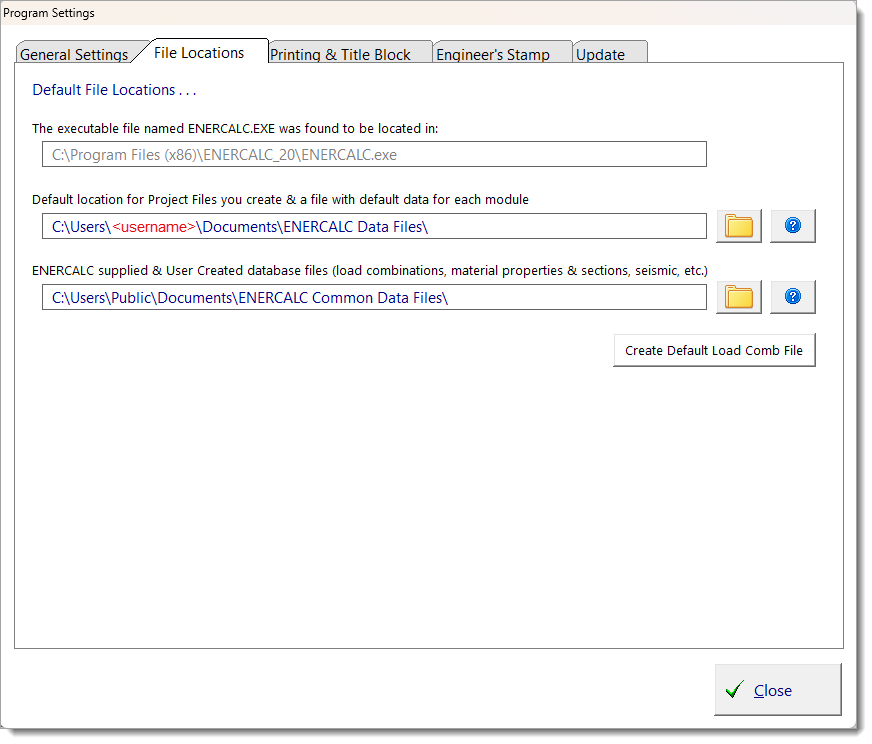
Because modern operating systems allow multiple users per computer, Microsoft suggests that software manufacturers create their own folder under Documents and set that as the default location for user-created files. The program conforms to this recommendation by suggesting an appropriate directory during the installation process.
Executable File Location: Reports the location where ENERCALC.exe is located.
Default Project File Location: Specifies the default location where the program will point when using File > Open or File > New from the main menu.
Backup Files Location: Specifies the location where backup project files are saved from each session.
Database File Location: Specifies where the program should look for the load combination database, steel database, wood database, and other files that contain the databases of standard values. This location needs to be accessible to all users on a specific computer. Microsoft suggests that software manufacturers set the following as the default location for data files that are referenced by the software: C:\Users\Public\Documents.
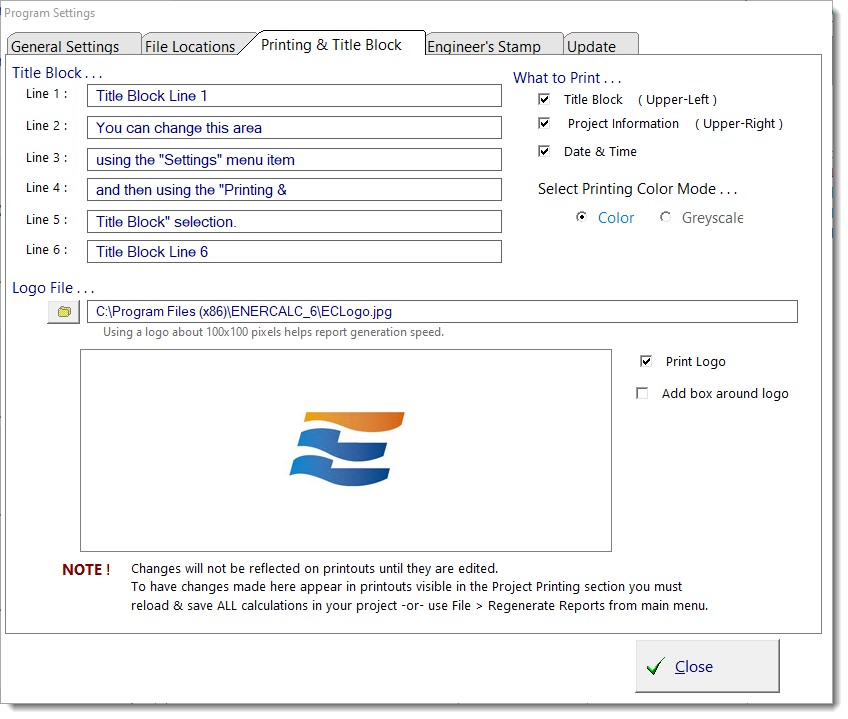
Title Block: These six entries correspond to the six lines in the upper-left corner of the printout.
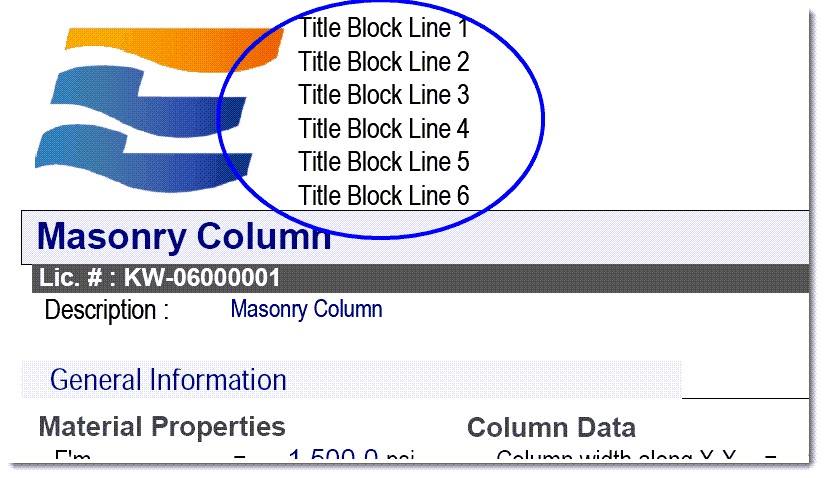
Logo File: Provides an option to specify a graphics file to be printed at the LEFT edge of the title block. If used, the six lines of Title Block information will be printed immediately to the right of the logo. Logos can be JPG or JPEG formats only.
When a logo is specified, the height is adjusted to fit into the title block area and the right-side "floats" according to the width of the image.
What to Print - Title Block: Check this box to print the title block at the top left of the report. With this item unchecked the printout begins with the calculation title bar (shown as "Masonry Column" in the image above)
What to Print - Project Information: Check this box to print the Project Information at the top right of the report.
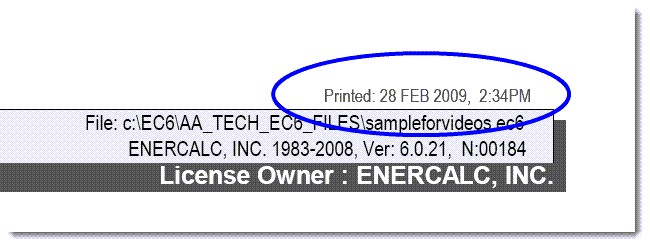
What to Print - Date & Time: Check this box to print the computer date and time on the report as shown below:
Select Printing Color Mode: This sets the default mode for printed reports created from ENERCALC SEL.
This tab allows a graphic image of the user's PE stamp to be uploaded. Then the stamp can be placed on printout by selecting the checkbox.
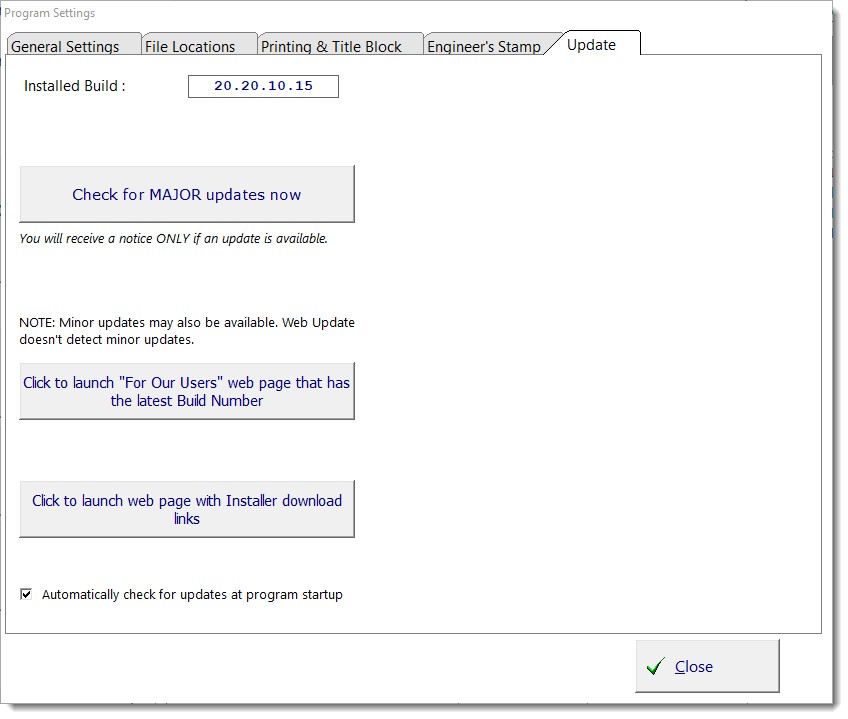
Click here to check for updates: This button will download the updating program from our server. This program will check and update the software to the latest version.
 <
<